Swap space becomes necessary in situations where RAM is insufficient, such as when you experience MySQL crashes, especially on small-RAM servers obtained from providers like DigitalOcean or Vultr.
I tried it on CentOS 7. It can be used on CentOS versions, Ubuntu, etc.
We create the swap file with the first command;
sudo dd if=/dev/zero of=swapfile bs=1K count=3M
The part that says 3M indicates that I will create a 3 GB swap area. So if we are going to create a 1 GB swap area;
sudo dd if=/dev/zero of=swapfile bs=1K count=1M
If we are going to create a 10 GB swap area;
sudo dd if=/dev/zero of=swapfile bs=1K count=10M
We enter the command according to the GB we want to open and wait. This space is directly deducted from your disk. I think 2GB is sufficient for moderate use.
With the next command, we grant write permission to our Swap file;
sudo chmod 600 /swapfile
We have given write permission to our swap file created in the root directory.
Afterwards;
ls -lh /swapfile
we check the properties of the created file. The output will be like below;
-rw------- 1 root root 3.0G Oct 23 01:08 /swapfile
As you can see, I created a 3 GB swap file and granted write permission.
In the next stage, we designate the Swap area. Briefly, we say “here is the swap”;
sudo mkswap /swapfile
It will have an output like below;
Setting up swapspace version 1, size = 3145724 KiB
no label, UUID=72e558ce-d33b-4b1c-a434-1d2c99df5990
Then we activate the swap area:
sudo swapon /swapfile
Process complete. Afterwards, let’s verify to see if the system detected it;
free -h
we said, and the output looks like below.

As you can see, the server has 1 GB of RAM. A 3 GB swap area has been formed.
Our process isn’t finished. We must make the process permanent when the machine restarts. We also introduce this process to our fstab file.
sudo nano /etc/fstab
We said to open this, i.e., the /etc/fstab file, with the command above. Then;
/swapfile swap swap defaults 0 0
we add this code to the bottom of the file we opened.
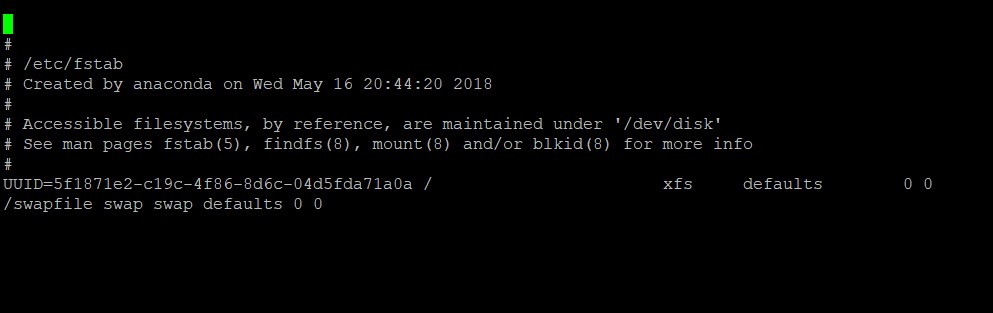
We pressed Ctrl+x, then y, hit Enter, and saved afterwards.
Or if we wish, we can add it to the /etc/fstab area with a single line command. (Do not give the command below if you added it manually as above)
cat /etc/fstab | grep -q swapfile || echo "/swapfile swap swap defaults 0 0" | sudo tee -a /etc/fstab
Then we reboot the machine. (If you are going to do the fine-tuning, do the fine-tuning below and reboot once at the very end.) And when the machine opens;
free -h
we say. If our output is like below;
congratulations on your swap space.
===========  DO NOT ENTER BELOW IF YOU DON’T CARE ABOUT THE DETAILS. YOU HAVE ALREADY CREATED SWAP WITH THE OPERATIONS ABOVE.
  ===========
Swap fine-tuning: (Not mandatory. If you did the steps above, this is extra. Here you determine at what level your RAM should reach before it starts using this swap.)
We created a swap area, but we need to determine at what stage of RAM usage the swap area will be used like RAM.
We can do this with Swappiness.
cat /proc/sys/vm/swappiness
we gave the command. Here on CentOS 7 at DigitalOcean, a value like 30 appears.
Briefly, there is an inverse proportion.
Swappiness value
If it is 10, start using swap area if 90% of RAM is used.
If it is 30, start using swap area if 70% of RAM is used.
If it is 40, start using swap area if 60% of RAM is used.
If it is 80, start using swap area if 20% of RAM is used.
If it is 100, start using swap area if 0% of RAM is used.
we can phrase it like this. Actually, the value 30 is quite good for me. But to explain how to change it, I am giving the details in the section below.
nano /etc/sysctl.conf
we open the sysctl.conf file with the command.
vm.swappiness = 10
let’s set it like this. If not there, let’s add it to the bottom. If it exists, let’s edit it. So the phrasing is;
If it is 10, start using swap area if 90% of RAM is used.
was what we said. We mentioned it above.
Afterwards for CentOS;
/usr/lib/tuned/latency-performance/tuned.conf
/usr/lib/tuned/throughput-performance/tuned.conf
/usr/lib/tuned/virtual-guest/tuned.conf
In all 3 files similarly;
vm.swappiness = 10
let’s change this value to whatever we want. This is done.
Afterwards there is a value called vfs_cache_pressure. As this value approaches 0, files taken into the swap file are kept for a longer time. I don’t recommend touching it, but I am giving the details for information.
nano /etc/sysctl.conf
we open our file with. Afterwards;
vm.vfs_cache_pressure = 100
we write whatever value it will be, 100, 90, 80.
Finally, we check the values of the operations we performed;
Swap check:
cat /proc/sys/vm/swappiness
vm.vfs_cache_pressure check:
cat /proc/sys/vm/vfs_cache_pressure
it gives the value of whatever we adjusted. We reboot our server for some things to take effect. Afterwards, we check our swap area and vm.vfs_cache_pressure values with the 2 commands starting with cat above. We also take a look with the one below.
free -h
We are finishing up.