On Windows devices, switching between different versions from the official Node.js site is troublesome when, for example, you want to revert to a Node.js version from 2 years ago. For this purpose, software has been developed for Windows to allow us to switch to the desired Node.js version. Its name is: Node Version Manager.
All information about Node Version Manager is available at the GitHub link below.
We can do it with this. You can examine the details and example commands on the page above, and from that same page, by navigating to Releases · coreybutler/nvm-windows · GitHub, you can perform the installation as shown in the image below;
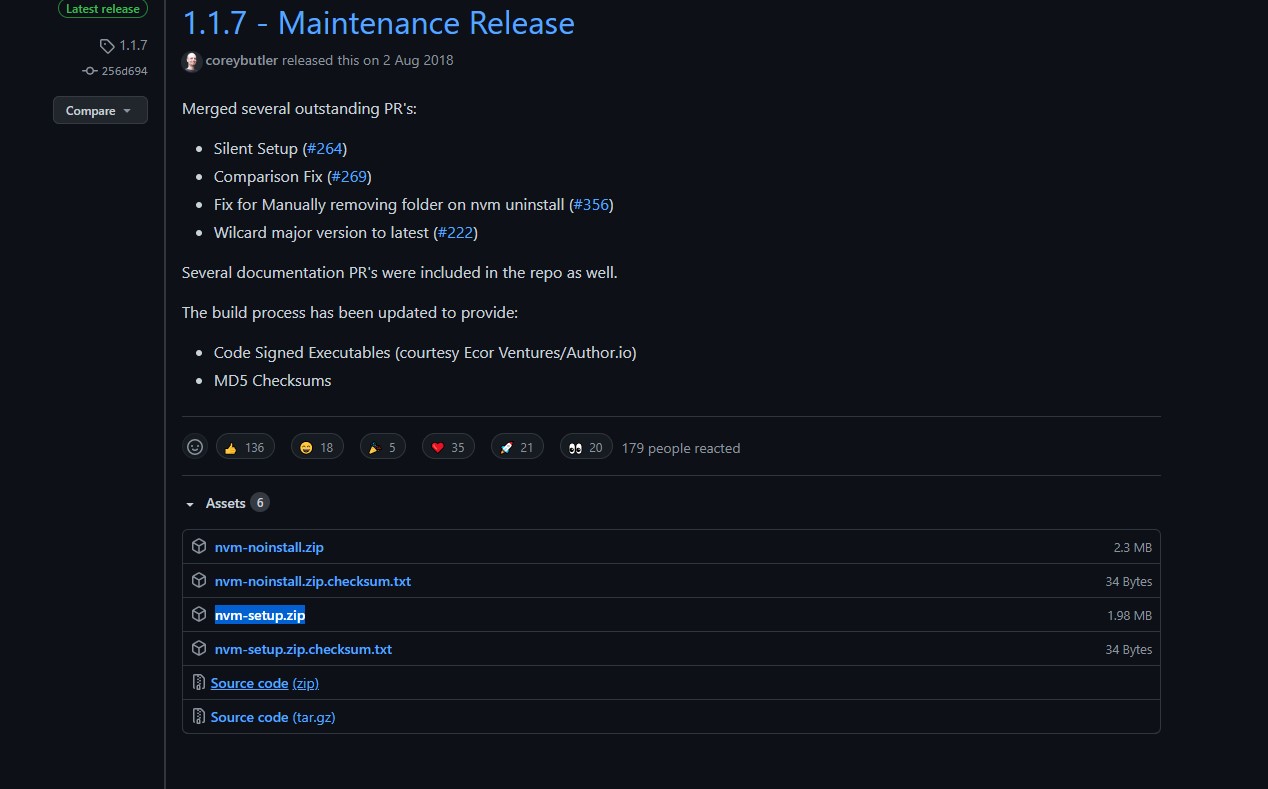
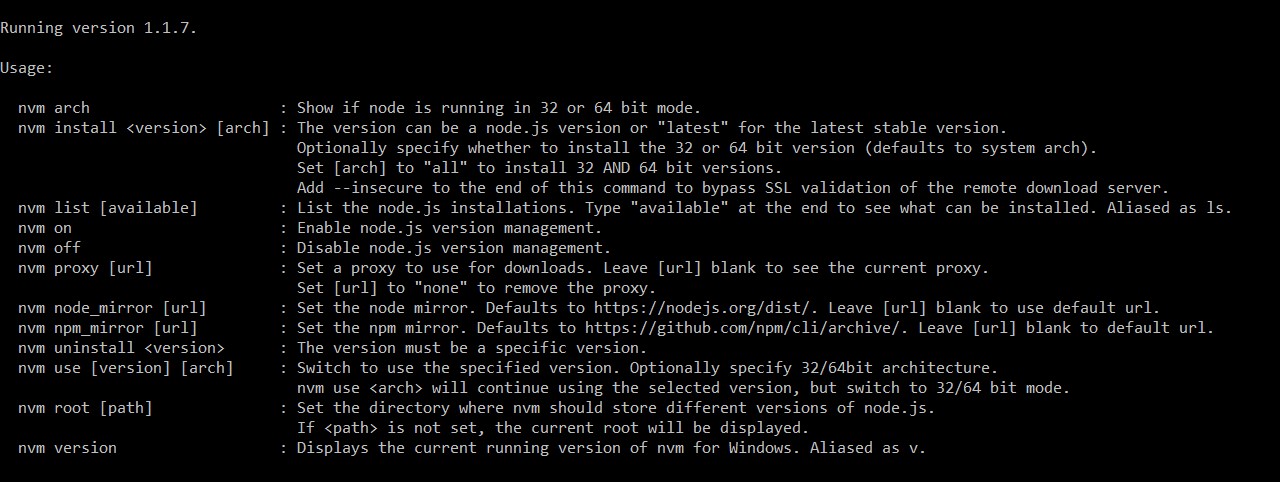
When the installation finishes, it doesn’t give any warnings. Once the installation is complete, if we type nvm in the terminal, we can see the available commands as shown below.
Afterwards, for the Node.js installation;
Again in the terminal
nvm install latest
by running this command, we can install the latest stable Node.js LTS package. If we explore, we can see from the commands that different Node.js versions can be installed.
When you run the install command, it finishes the installation and to use it
nvm use 16.9.0
it gives a command like this. So, it says the version I installed is 16.9.0, and if you are going to use it, say use … We run it, and Node.js becomes installed.
Well, there is an extra package manager; I am checking if it installed npm as well so I can use it.
npm -v
I ran it, and it did install it. (Necessary for me for Bootstrap, tailwindcss, etc.)
Similarly, to see which Node.js version we are on;
node -v
we can see with this command.